Styrkr
How to use the app
Everything you need in five minutes. Your coach sets up your program, meal plan and check-in – you use the app to follow along and stay in touch.
Put the app on your phone
Open the link from your coach on your phone. A bar at the top says Use as app – tap Install (Android) or the share button and "Add to Home Screen" (iPhone). The app then sits on your home screen as an icon.
Then go to More → Settings and turn on notifications so you know when your coach writes.
Today
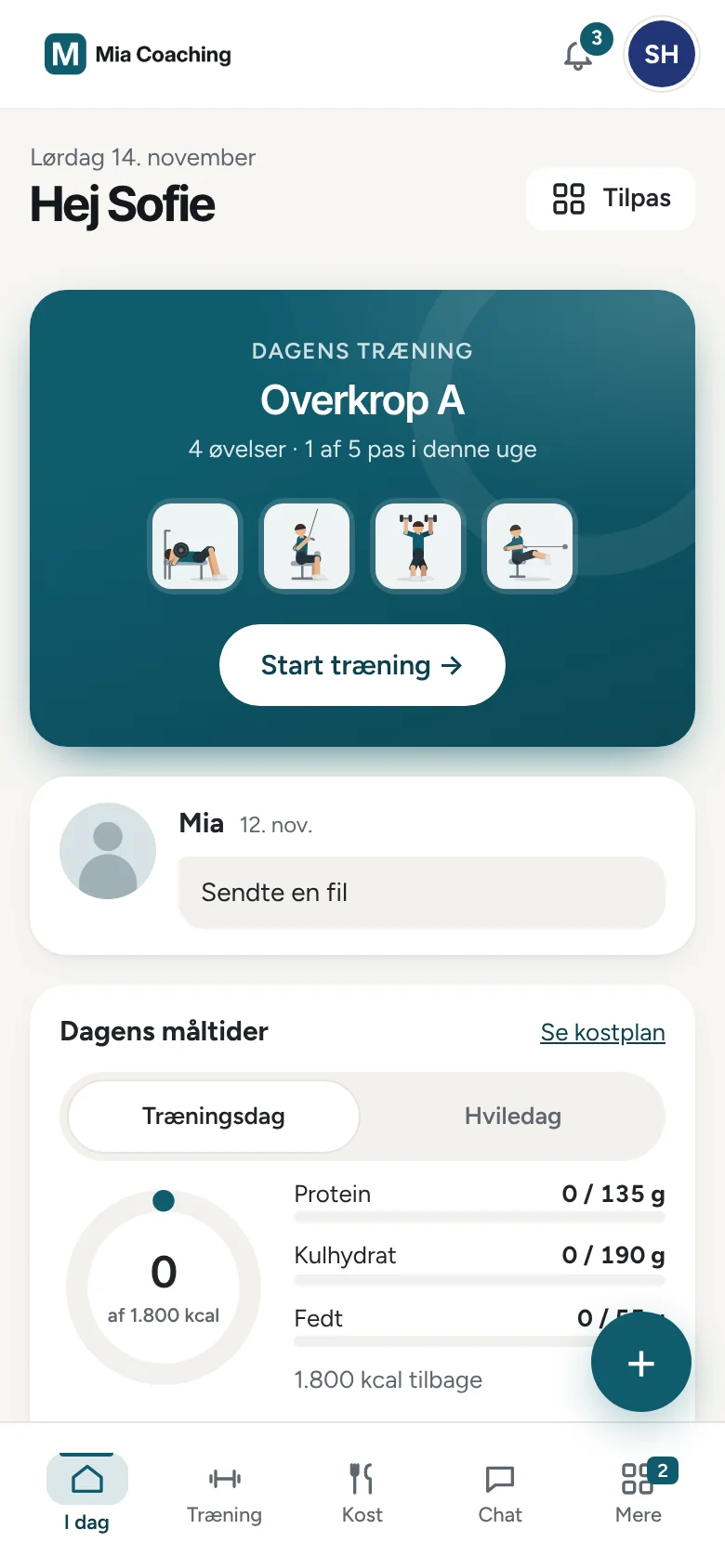
The home screen shows today's one task at the top: this week's check-in or today's workout with a Start button. Below it you see today's meals, your habits and your weight. At the bottom of the app you switch between Today, Training, Food, Chat and More.
Tap Customize to move, hide or show more cards so the home screen fits you.
Training
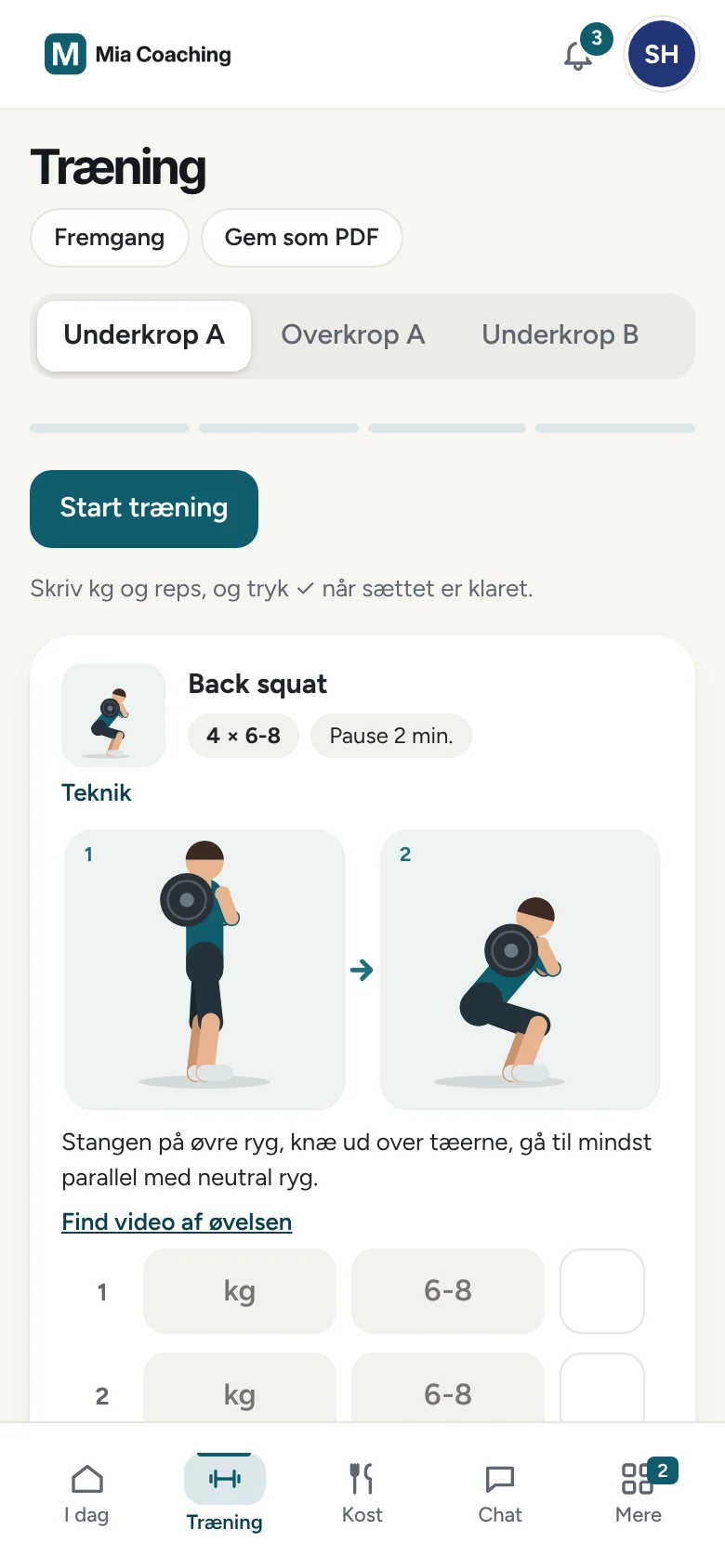
Tap Start workout. You see one exercise at a time. Enter kg and reps and tap ✓ when the set is done – the rest timer starts by itself. Tap Next when the exercise is finished, and Finish workout at the end to see your summary.
Technique tips and video sit right under the exercise. Beat your own record and the app celebrates it.
Nutrition
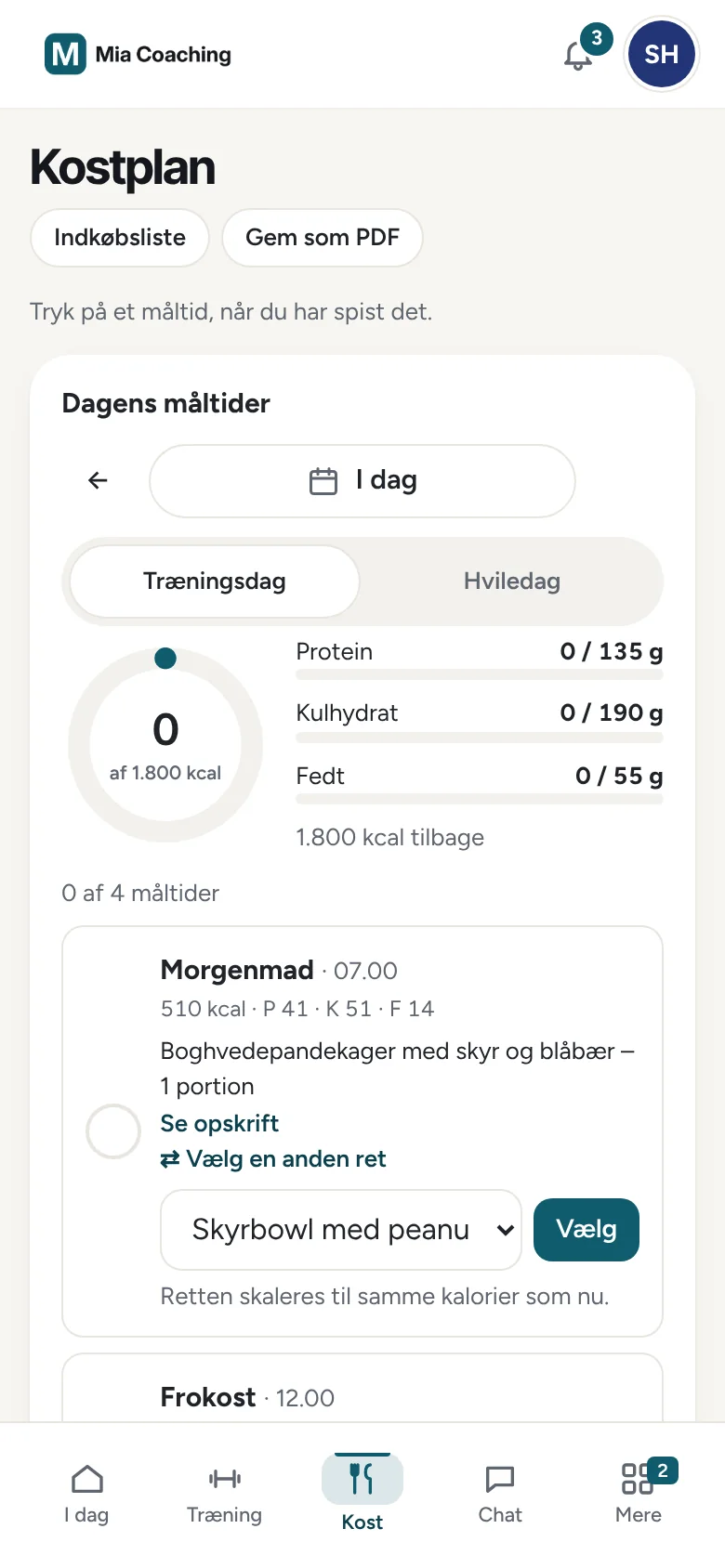
Under Nutrition you see today's meals. Tick a meal when you have eaten it and watch calories and macros fill up. Tap Eat again or swap a dish if your coach has given you alternatives. You can also send a photo of your food to your coach.
Weekly check-in
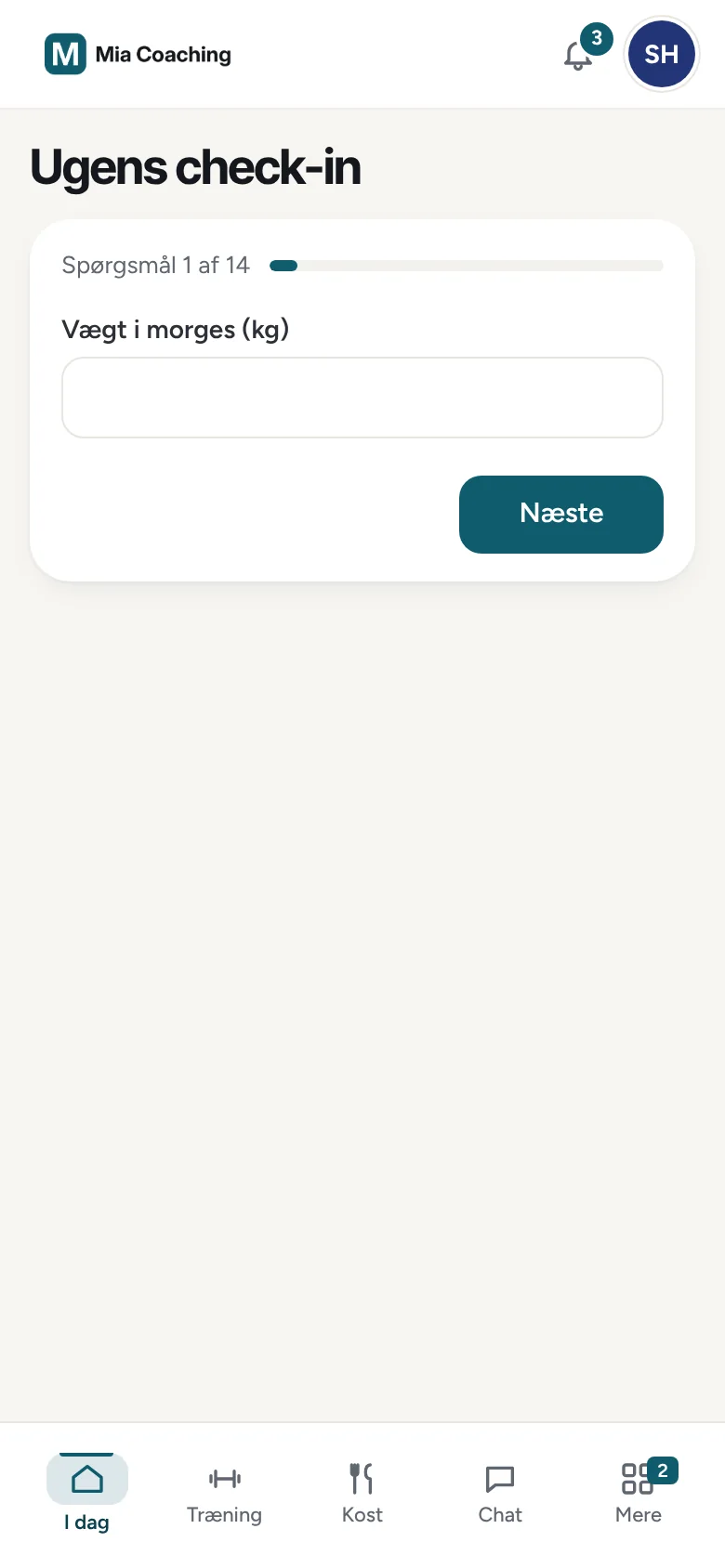
Once a week you answer a short check-in: weight, energy, sleep, stress, optional body measurements and photos, and how the week went. You answer one question at a time, and it takes a few minutes. Your coach uses it to adjust your plan. Start it from the home screen when it is time, or under More.
Photos can only be seen by you and your coach.
Progress
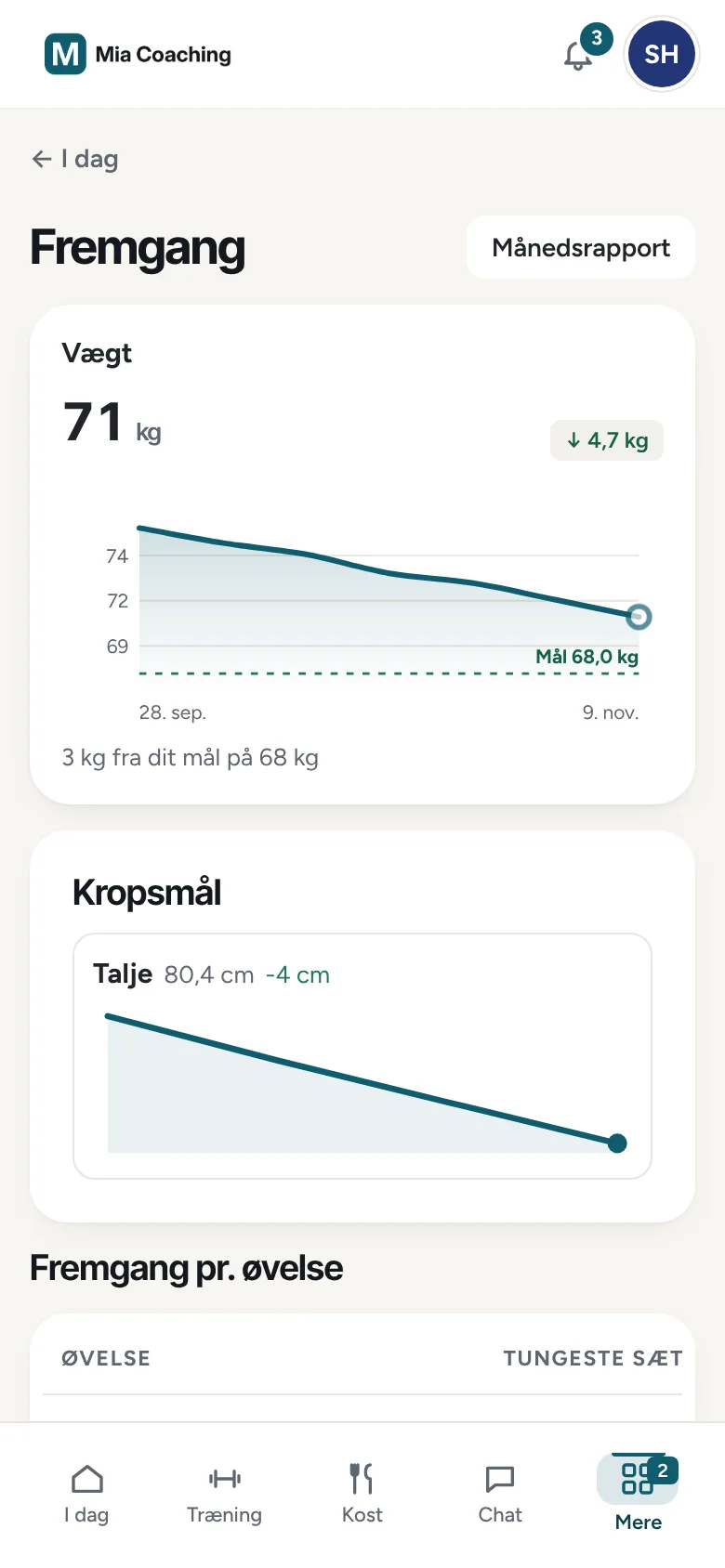
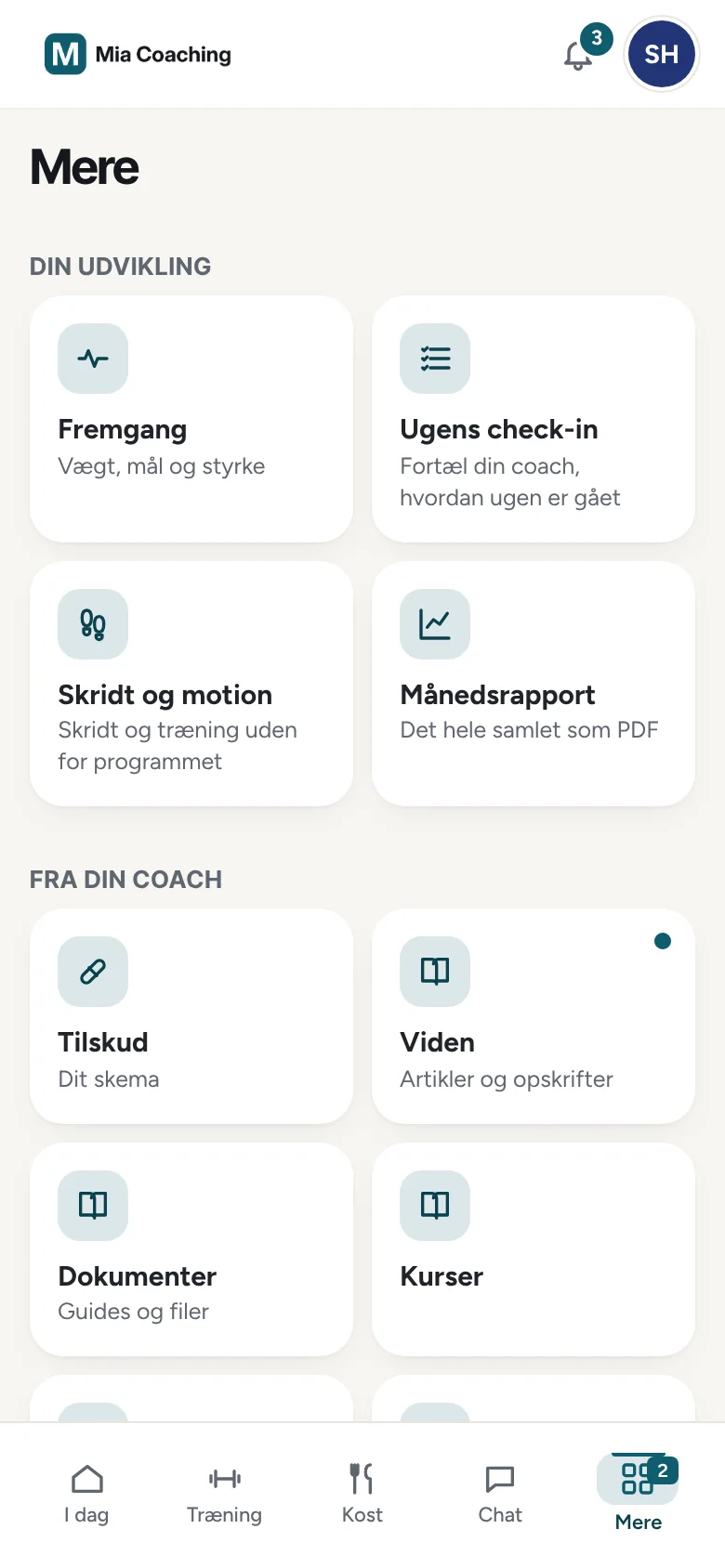
Under More → Progress you see your weight over time, your measurements and your strength per exercise. Tap Monthly report to get it all as a PDF.
Chat, video calls and booking
Write to your coach under Chat – you can send photos and files. Your coach can call you on video straight from the chat. If your coach has opened booking, you will find Book a time under More.
Habits, health and settings
Steps, water and sleep go on the home screen every day. Under More → Health log you can share data from your health log if you want to. Under More → Settings you choose language, light or dark look, notifications and password – and you can always download or delete your data.
Steps from your iPhone
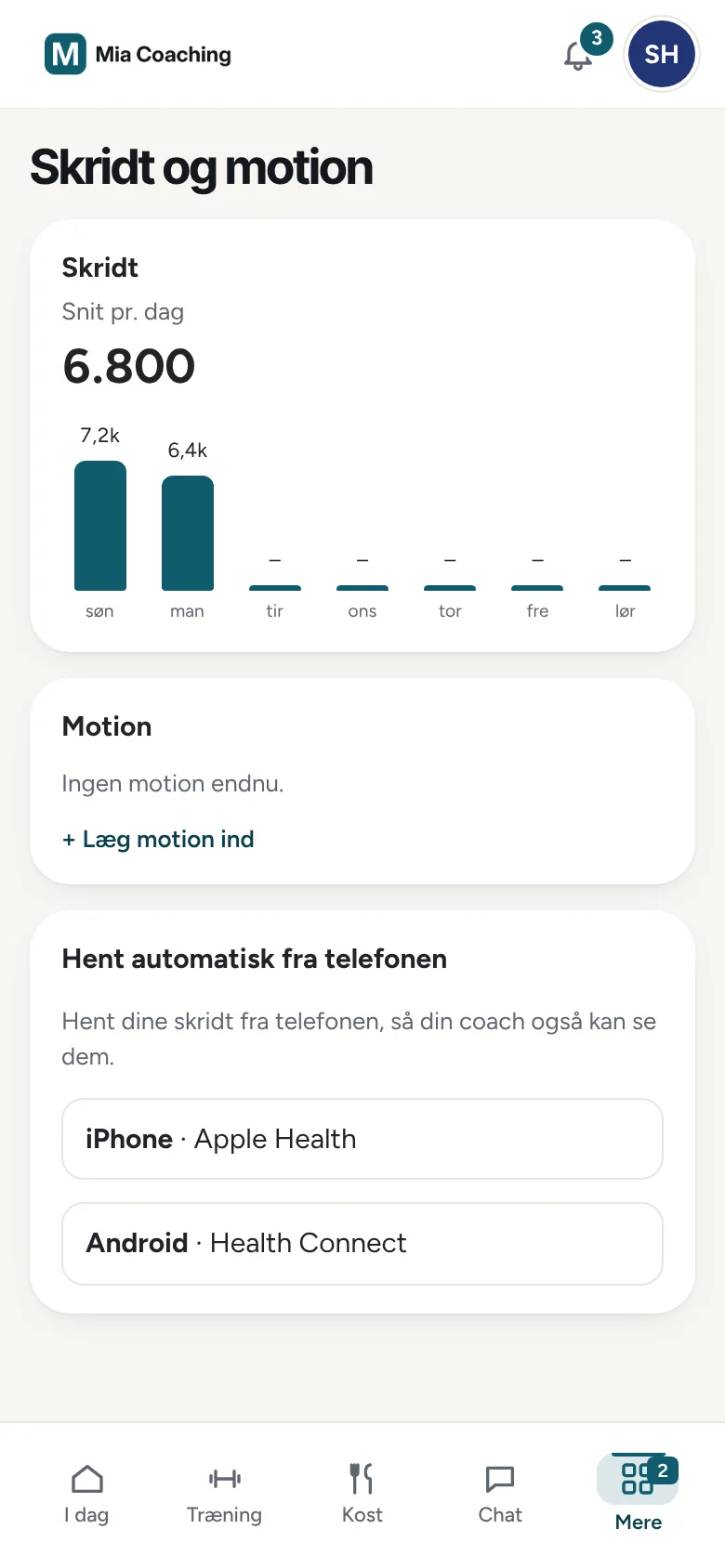
If you have an iPhone, you can fetch your steps from the Health app so you don't have to type them. Go to More → Steps and activity, tap Get the Styrkr shortcut and choose "Add Shortcut". Then tap Connect and tap "Allow" when your phone asks for access to Health.
Every day, tap Get steps from iPhone under Today's habits on the home screen. It takes a few seconds, then you are back with today's steps, and your coach can see them.
Knowledge and Community
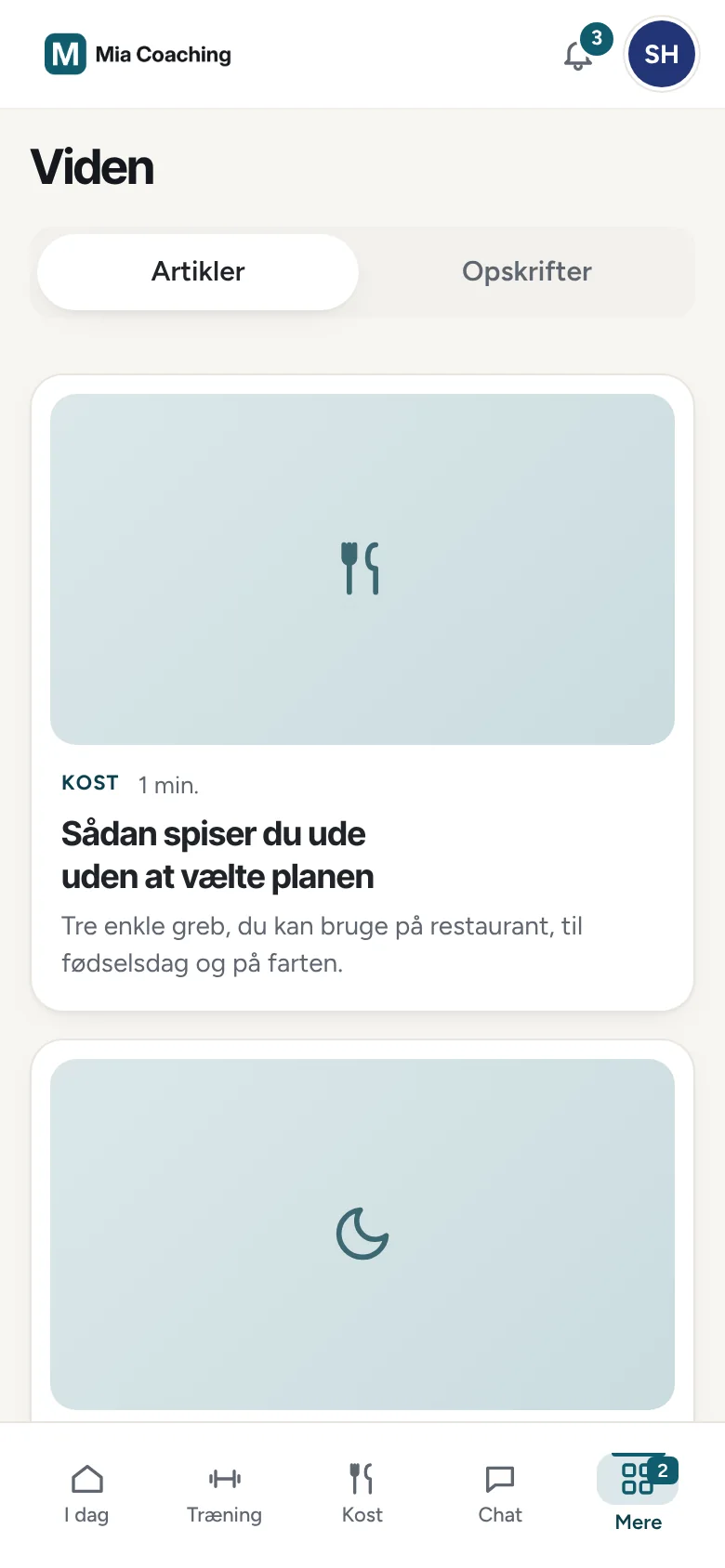
If your coach shares articles or recipes, you will find them under More → Knowledge. New articles are marked New. If you are in a group, it is under More → Community. There you can write with the others and answer polls with one tap – no one can see who voted for what.
Questions about your training and nutrition go to your coach in the chat. Questions about the app itself go to Help under Profile.